Logo
  • Awesome templates
  • Purchase
  • Buy More Template

DOC NAVIGATION

  • Introduction
    • What's Included
    • How to Install Sellzy Website Templates
  • Template Structures
    • HTML Structure
    • CSS Files and Structure
    • JavaScript Files
  • Change Contents
    • Changing Images
    • Changing Brand Logo
    • Changing default template colors
    • Change Icons
  • Sources and Credits
  • Support

Introduction

We would like to thank you for choosing Sellzy.

We made Sellzy from the ground-up with flexibility in mind. Each element of Sellzy is extremely customizable, where you can make

Sellzy to reflect your own branding styles.

The guide gives you detailed methodologies about how you can customize Sellzy and make it fit your brand perfectly!

What's Included

After purchasing Sellzy template on Themeforest.net with your Envato account, go to your Download page. You can choose to download Sellzy template only or the entire Sellzy template package which contains the following files:

1. Sellzy template: A .zip file with all .html files with all necessary assets.

2. Documentation: An HTML format documentation.

3. Licensing.

How to Install Sellzy Website Templates

Installing a Sellzy template is not like WordPress or CMS theme installation, actually, installation keyword does not go with bloggar template. Why? because you don't install anything, yes bloggar or HTML templates are automatically rendered by the browser.

1. Editing Sellzy Template

Before all that you have to edit your template and place your own contents by replacing old demo contents, in this case, you will need a code editor such as - VScode, Sublime Text, etc. When template editing is done using editor, save the files and folder and go ahead to upload template files on live server.

2. Uploading to Live Server Using FTP:

First of all, If you don't have your template on your computer, download Sellzy template to get started, when download/purchase complete you will get a package like this screenshot (after unzip).
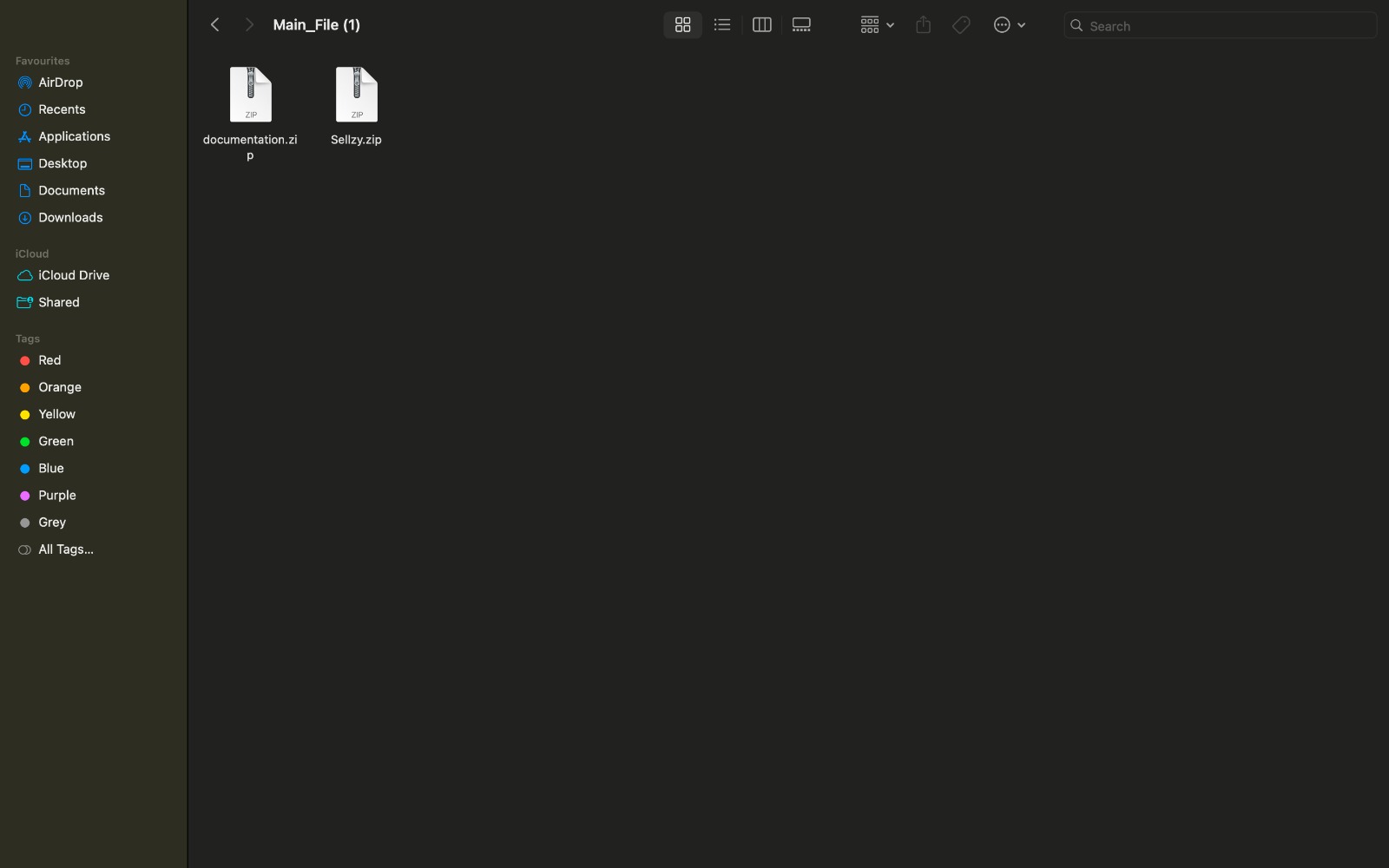
whats-included
3. Package comes with documentation unzip the download package, you'll found a folder with all template files, like above screenshot.
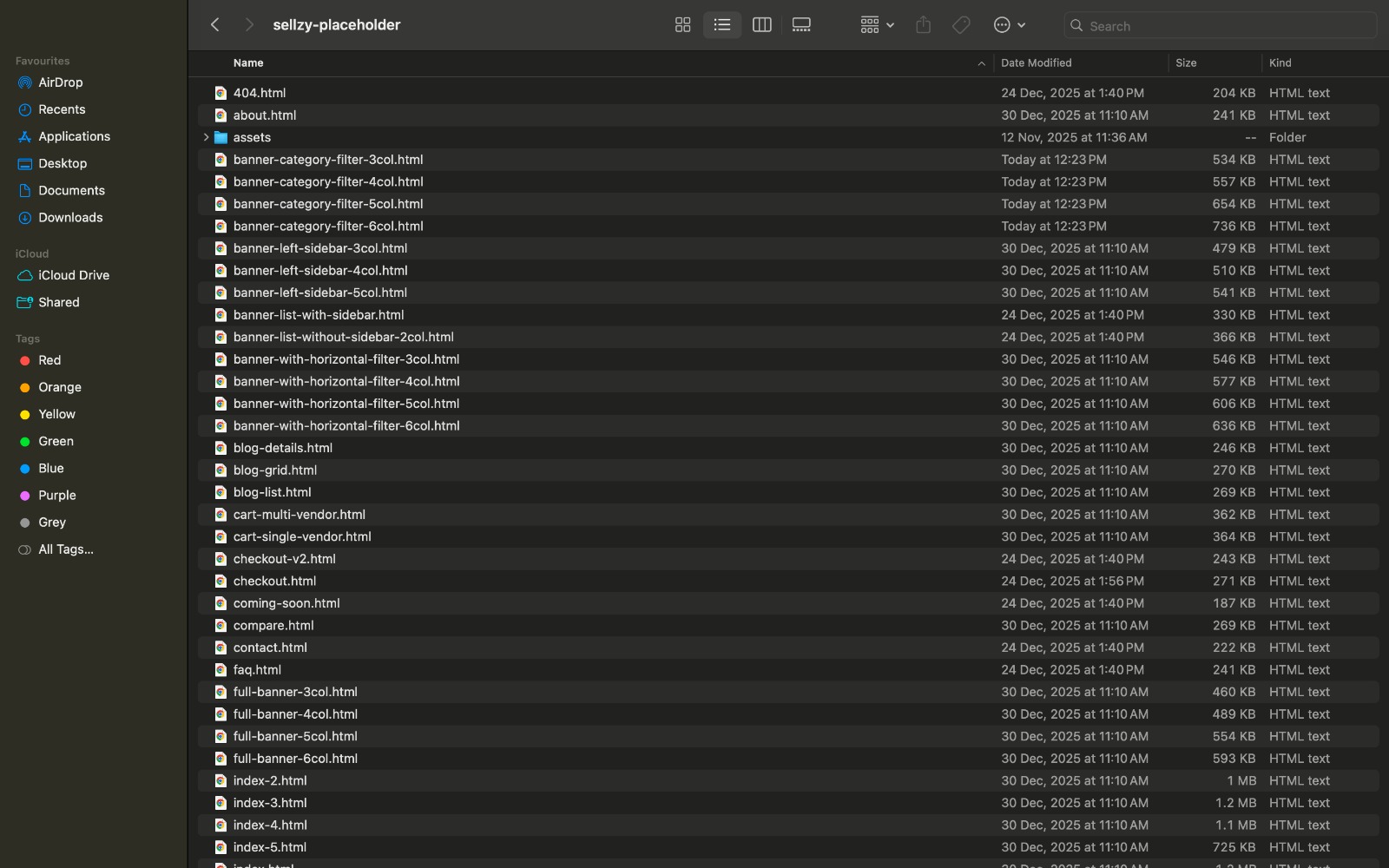
whats-included
4. Now, login to your hosting control panel or FTP client, such as: FileZilla, CyberDuck etc. and upload template files on your server root.
5. Once all files are uploaded, go to www.yoursite.com/index.html you can see your the homepage, make sure the initial page is named as index.html

Template Structures

  • HTML Structure
  • CSS Files and Structure
  • JavaScript Files

HTML Structure

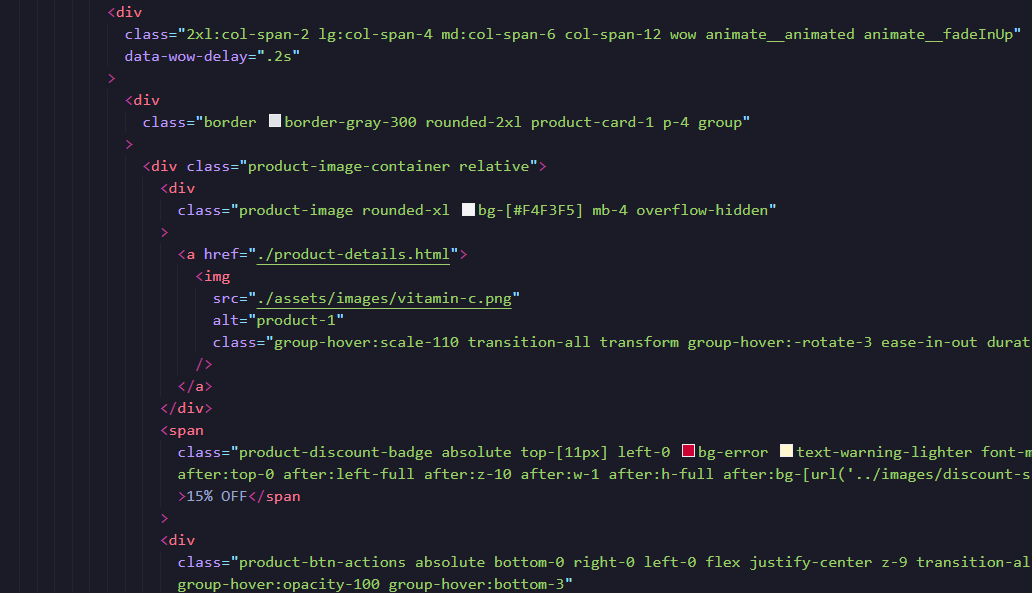
This template is a fixed layout with four columns. The main contents are inside the 'body' tag divided into differt section (i.e. header, banner, Product... footer etc.). The general template structure is the same throughout the template. Here is the general structure.

whats-included

CSS Files and Structure

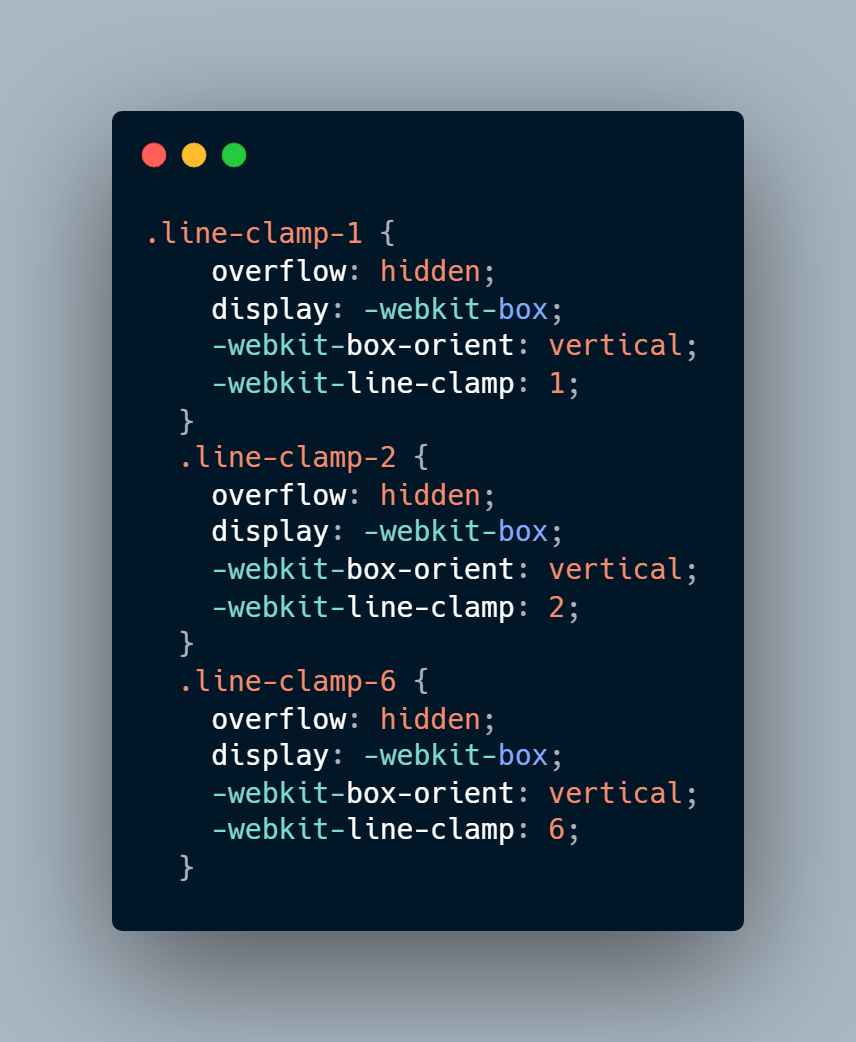
This template is a fixed file layout. All the css files are renamed as different component which can be very easy to find in the dedicated CSS folder structure. Look for the class name in the html file and match the same name in the CSS file. The general template structure is the same throughout the template. Here is the general structure.

whats-included

JavaScript Files

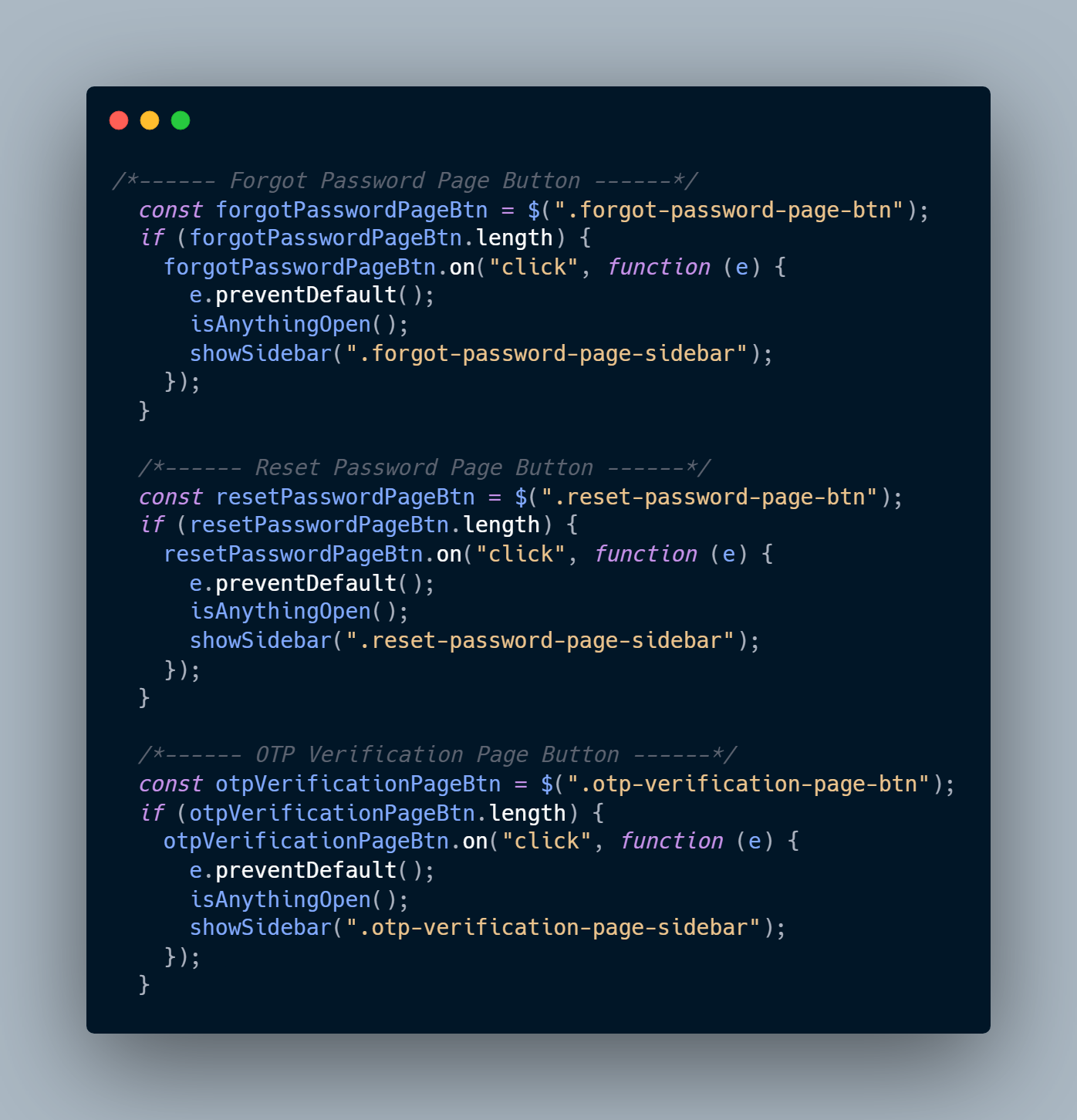
There is a custom .js file named main.js and are several vendor js files as plugins. We are using jQuery(a javascript library) instead of vanilla javascript. Our file structure is a follows:

whats-included

Change Contents

  • Changing Images
  • Changing Brand Logo
  • Change Icons

Changing Images

To change any images of the website
  1. Carefully collect the source name of the image (i.e. logo.png)
  2. Open the file called images.
  3. Find the particular image file.
  4. Replace the file with your image.
  5. Make sure that the file name does not change.The file name should be the same.

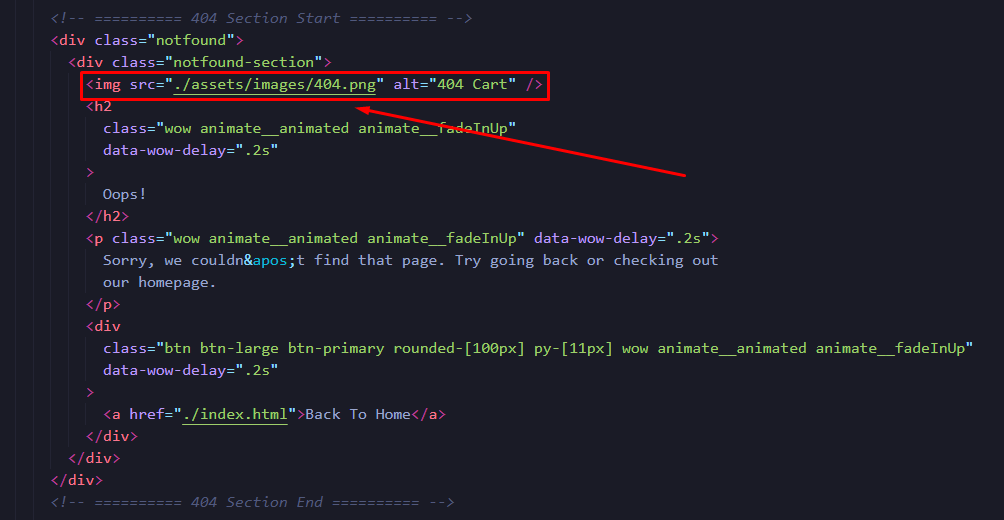
Example: Suppose you want to change the following image file:

whats-included
You have to do the following to change this image with your own image:
  1. Open the file called images.
  2. Find the particular image file called 404.png.
  3. Replace the file with your image.
  4. Make sure that the file name does not change.

Note: Images seen in the live preview are only set for preview purposes. They are not included in the download files.

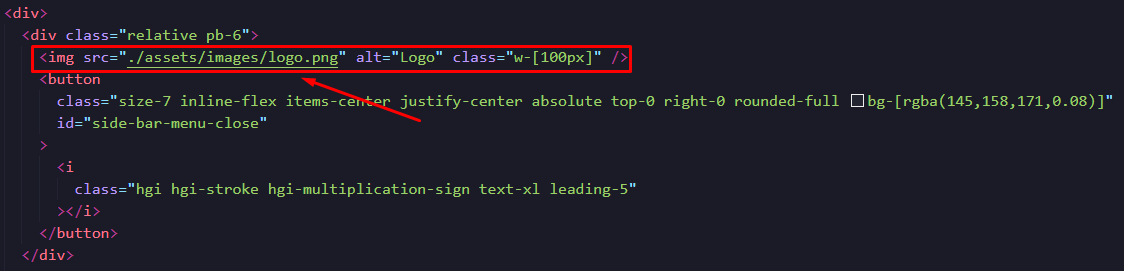
Changing Brand Logo

whats-included
  1. Open the file called images.
  2. Find the particular image file called logo.png.
  3. Replace the file with your image.
  4. Make sure that the file name does not change.

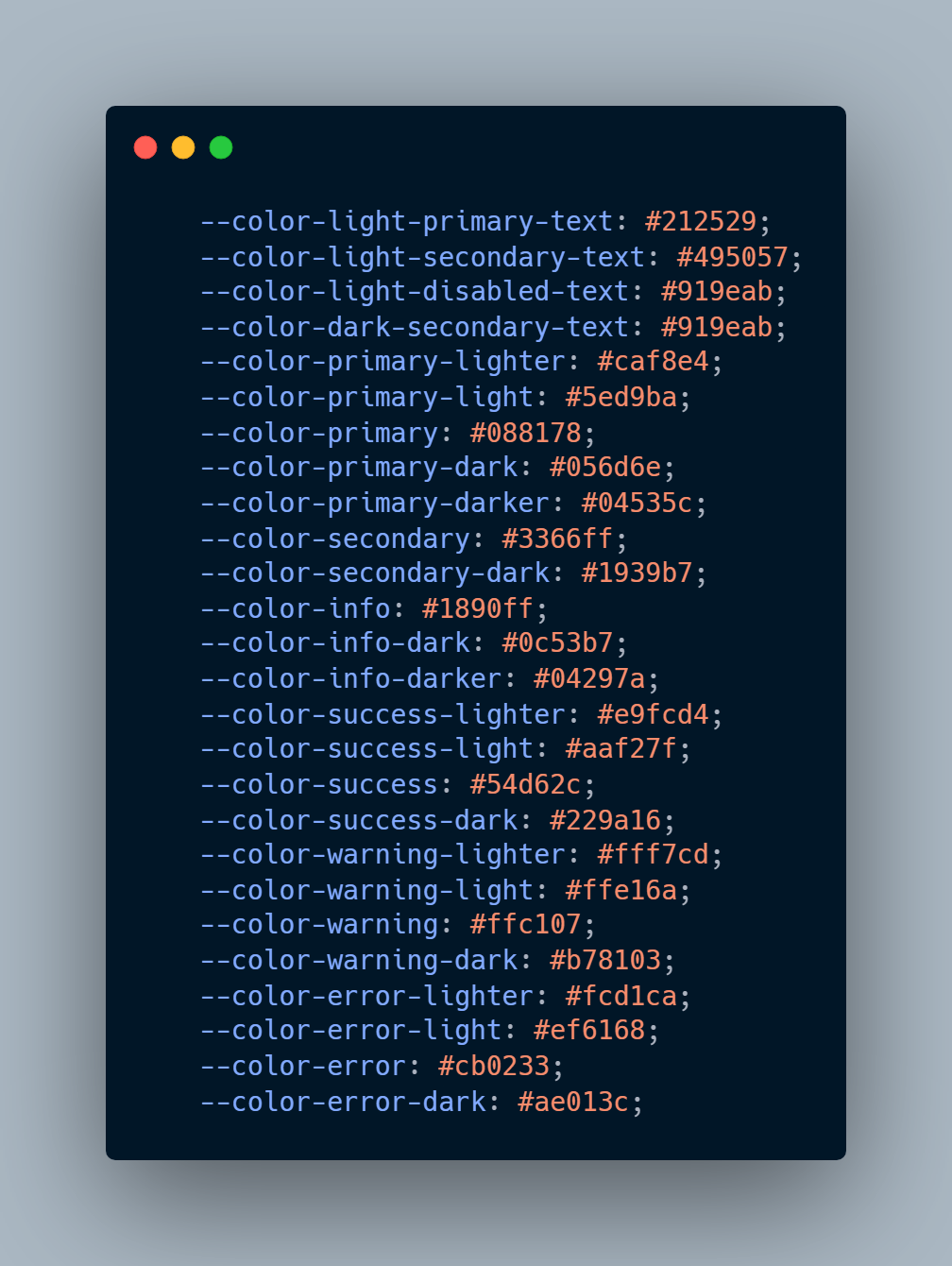
Changing default template colors

  1. Open the style.css file from assets > css > default folder with a text-editor.
  2. Change the right-side values of the variables to change any default colors of your site.
  3. Save your file.

Have a look at the following image for a visual description:

whats-included

Change Icons

  1. Open the .html file with a text-editor from where you want to change any hugeicons
  2. Choose and collect an icon from https://hugeicons.com/
  3. Replace the existing icon from the .html file with the new icon you got from https://hugeicons.com/
whats-included

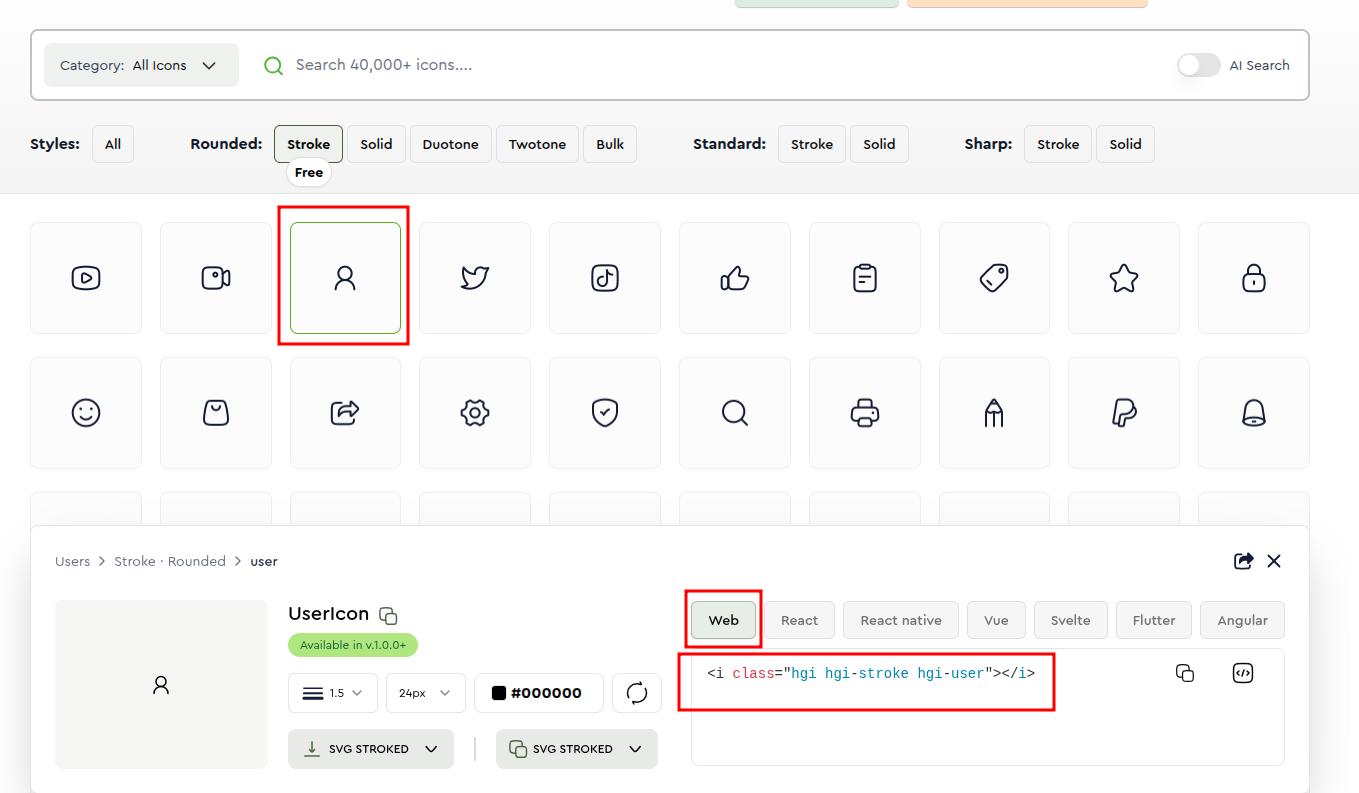
To get the icon from https://hugeicons.com/

  1. Go to https://hugeicons.com/
  2. Click the icon tab whats-included
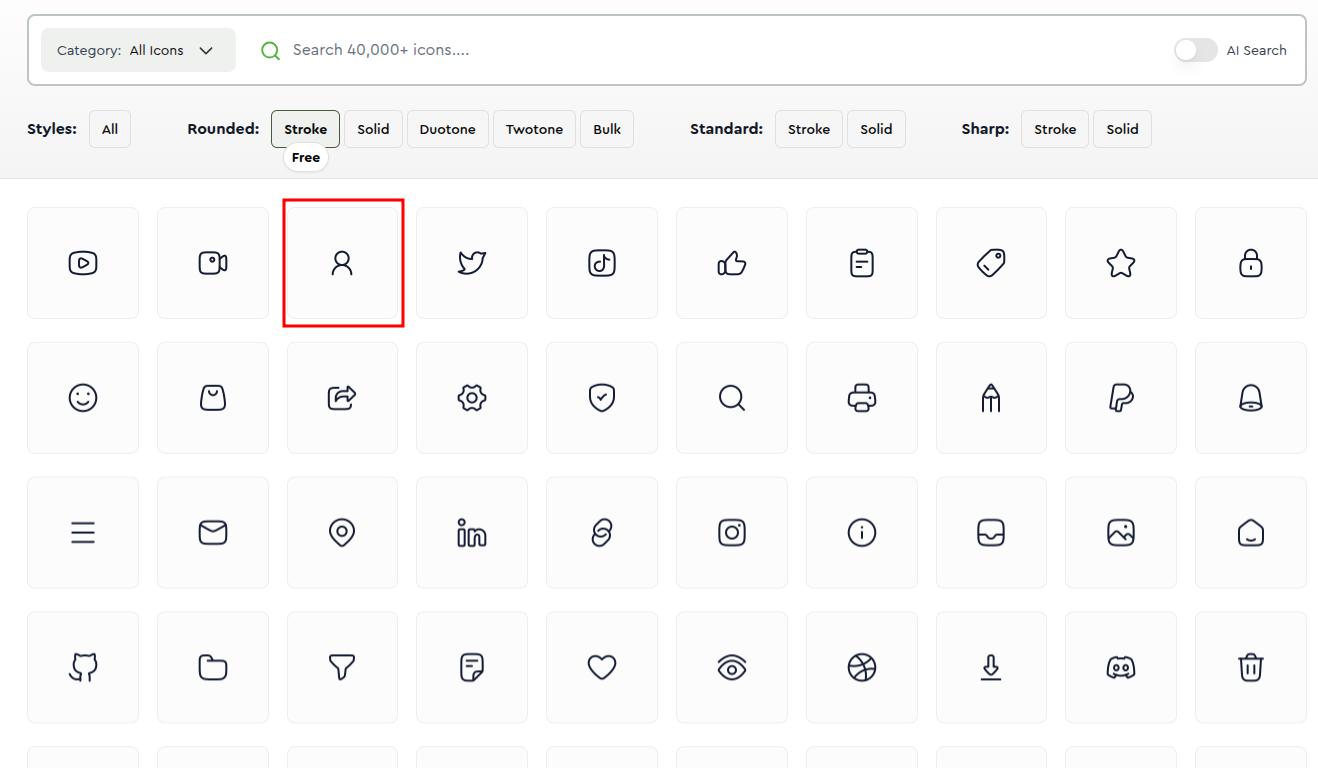
  3. Search for your desired icon font and click on the thumbnail to get the icon whats-included
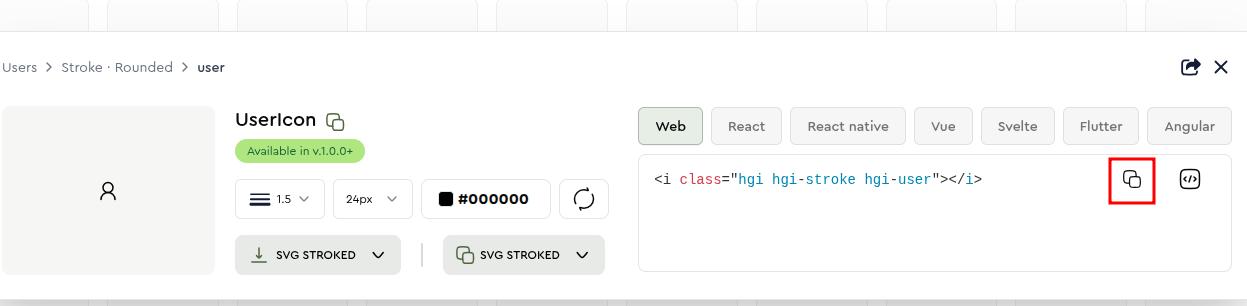
  4. Copy the red bordered text as shown in the following image whats-included
  5. Collect this text to and replace the existing icon from the .html file.

Sources and Credits

We've used the following fonts, free icons and plugins as listed:
  • Tailwind Css
  • jQuery
  • hugeicons Icon fonts
  • Magnific popup
  • Nice Select
  • Slick Plugin
  • Google Fonts

Support

Support Scope

Included in Free Support Scope:
  • Fixing bugs
  • Helping clients in changing site contents by sending instructions that couldn't be covered by documentation

NOT Included in Free Support Scope:

  • Any type of custom changes.
  • Any type of request to update clients' site contents.

Paid support is not a part of Free Support when you purchase the template from Themeforest. We understand that some clients need custom changes while using our template. For that we kept an option for paid support which includes:

  • Custom change request
  • Custom pages
  • Custom features

We kept a flat rate for our paid support which is $30/hour.

Support Ticket

Please send your support request here: Support Request. You will response within 1 business day.

Regards,

createuiux Support Team

If you need the template customization or custom development services please contact us.

Email Us

img

© 2025 All Rights Reserved by createuiux